Skip to content
Home…›Samsung
Manual
Samsung Android 4.1 Jelly Bean Released Oct 2014 Discontinued

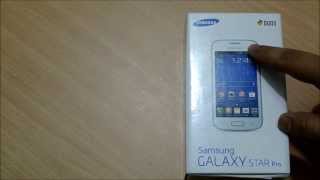
Samsung Galaxy Star Pro

Android 4.1 Jelly Bean Operating system
4" Screen size
2MP Main camera
Cortex-A5 Single core Processor
4 GB Storage
1,500 mAh Battery
By category

Key specs

Video reviews

Watch before you decide

Reviews
Samsung Galaxy Star Pro S7262 Hard Reset
Rohan Yadav
KitKat rom for samsung galaxy star pro GT-s7262
LogansDroids
Root Samsung Galaxy Star Pro [GT S7262] without using RECOVERY mode
Tekh Review
How to install android Lollipop in Samsung galaxy star pro GT-s7262
LogansDroids
[Link updated]How to Fix white screen in Samsung Galaxy Star Pro Gt-S7262
LogansDroids
Samsung Galaxy Star GT-S5282 vs. Samsung Galaxy Star Pro GT-S7262
BCD Technology
Samsung Galaxy Star Pro GT-S7262
GameTech
Unboxing and Quick Review of Samsung Galaxy Star Pro S7262
BCD Technology
Samsung Galaxy Star Pro Duos Unboxing & Hands On
Smruti Panda
Lollipop ROM for Gt S7262 Samsung galaxy star pro
Tekh Review
Samsung Galaxy Star Pro S7262 Hard Reset
benarba بن عربة
Samsung Galaxy Star Pro Review
Prabal Weds Arzoo
How to Install KitKat in Samsung Galaxy Star Pro
LogansDroids
Specifications
Full specs
Overview
Released Oct 2014
Announced —
Price tier —
Also Known As Samsung Galaxy Star Plus, GT-S7260, GT-S7262
Processor ARM Cortex-A5 Single core
CPU Speed 1000MHz
RAM 512MB
Storage 4 GB
Price (CAD) —
Regions USA, Canada
Regional Variants —
Warranty 1 Year
Accessories AC Charger, Manual, Standard Battery
Software & Support
OS Android
OS at Launch 4.1 Jelly Bean
Current Version —
OS Updates —
Security Updates —
Custom UI —
Display
Type Color
Technology LCD (TFT)
Size 4"
Resolution 480 × 800
Pixel Density 233 ppi
Colors 16.7 million
Refresh Rate —
Touch Sampling Rate —
Peak Brightness —
Always On Display
DC Dimming
DisplayMate Grade —
Multi-touch
Fingerprint Resistant
Sensors Motion / Accelerometer
Additional Features Capacitive touch screen
Secondary Display
Secondary Display
Type —
Size —
Resolution —
Color Type —
Colors —
Camera — Main
Main Camera 2MP
Flash No
Sensor Name —
Sensor Size —
Focal Length (Main) —
Focal Length (Ultrawide) —
Focal Length (Telephoto) —
Optical Zoom —
Digital Zoom —
Video Resolution —
Video FPS —
Video Length —
Video Formats 3GP / 3GPP, 3G2 / 3GPP2, H.264 / AVC, MPEG-4
Features Brightness control, Effects, Night mode, Panorama, Self-timer, Smile detection, White balance
Additional Info Scene mode, Metering
Camera — Front
Front Camera
Video Recording
Resolution —
Video Resolution —
Video FPS —
Zoom Unknown
Optical Zoom —
Digital Zoom —
Features —
Additional Info -
Camera — Scores
DxOMark Overall —
DxOMark Photo —
DxOMark Video —
DxOMark Zoom —
DxOMark Bokeh —
DxOMark Selfie —
DxOMark Rank —
Performance
Chip ARM Cortex-A5 Single core
Process Node —
GPU —
RAM 512MB
Storage 4 GB
AnTuTu v11 —
Geekbench 6 Single —
Geekbench 6 Multi —
Geekbench 5 Single —
Geekbench 5 Multi —
Battery
Capacity 1,500 mAh
Type Lithium-Ion (Li-Ion)
Removable
Fast Charging —
Wireless Charging —
Comes with Charger —
Talk Time 15h 00m
Video Playback 6h 00m
Internet (WiFi) 7h 00m
Internet (Cellular) —
Standby 15h 24m
Mixed Usage —
Charge Time 0–100% —
Charged in 30 Min —
GSMArena Score —
Battery Test Source —
Battery Life (Call) —
Battery Life (Video) —
Battery Life (Web) —
Battery Life (Gaming) —
Connectivity
Wi-Fi Wi-Fi b/g/n
WiFi Version —
Bluetooth 4.0
Bluetooth Profiles A2DP, AVRCP, OPP/FTP, HID, HFP, HSP, PAN
Bluetooth Codecs SBC
USB Type Micro-USB 2.0
USB OTG
USB Speed —
NFC
Infrared
Headset Jack 3.5mm
Mobile Hotspot
GPS
GPS Type —
UWB
Satellite —
Memory Expansion
Expansion Type MicroSD, MicroSDHC
Expansion Capacity 32MB
Cellular
Networks GPRS, EDGE
2G MHz
850 900 1800 1900
Data —
VoLTE Unknown
WiFi Calling Unknown
Physical SIM Micro-SIM
Dual SIM
eSIM
Push to Talk
Data Tethering
Design & Build
Form Factor Bar
Material Plastic
Frame Material —
Rear Material —
Colors White, Midnight Black
Dimensions 12.1 × 6.3 × 1.1 cm (4.76 × 2.48 × 0.43 in)
Weight 121g
IP Rating —
Water Resistance Unknown
Fingerprint Sensor No
Rugged Design
iFixit Score —
Parts Availability —
Audio
External Speakers Yes
Noise Cancellation
Dolby Atmos
Hi-Res Audio
FM Radio —
GSMArena Loudness —
Speaker Loudness —
Input & Navigation
Touchscreen
Navigation Type Touchscreen
Keyboard Type Touchscreen
Home Key
Sleep/Wake Key
External Volume
Safety
SAR Head 0.497 W/kg
SAR Body 0.311 W/kg
Hearing Aid Compatible
TTY/TDD
More
Additional Information —
Additional Comments

Also available in a dual-SIM model.

Related Links Official Website
Manual Download PDF
Quick Start Guide —

Specifications are sourced from manufacturers and third-party databases and may contain errors. Suggest a correction →

Common questions

What people actually want to know

When was the Samsung Galaxy Star Pro released?
How long does the battery last on the Samsung Galaxy Star Pro?
Does the Samsung Galaxy Star Pro support wireless charging?
Does the Samsung Galaxy Star Pro have a headphone jack?
Does the Samsung Galaxy Star Pro have NFC?
Where can I get support for the Samsung Galaxy Star Pro?
Where can I download the Samsung Galaxy Star Pro manual?
Community

Questions & answers

GR
Grindale · Answered

Here are the steps for your phone to automatically install apps to your external memory. Items needed1. Android Phone2. a micro usb cable3. a computer Step 1: Getting Ready to Change Installation Location 1. Get the Google Android SDK - Unzip the file and place the folder onto your desktop or anywhere that can be easily accessed. - find the platform tools folder (default, it should be : adt-bundle/sdk) 2. Find cmd/terminal (for mac) - (for mac users) go to [System Preferences > Keyboard > Keyboard Shortcuts > Services] and then check the box [New Terminal At Folder] 3. Go onto your Android phone and select USB debugging - Go to [System settings > Developer Options] and select USB Debugging (if the option is grayed out, unplug your phone first) Step 2: Using adb 1. Windows - Open the folder called platform-tools - shift+right-click anywhere inside the folder and choose [Open Command Window Here] Mac - right-click the folder called platform-tools and choose [New Terminal At Folder] 2. Enter in the following For Windows : adb devices adb shell pm set-install-location 2 adb shell pm get-install-location For Mac : (note - there is a period before the slashes) ./adb devices ./adb shell pm set-install-location 2 ./adb shell pm get-install-location 3. Check if you did it right - if you did it right, the last output should say: 2 [external] If you did it right, CONGRATS! Your phone will now install your apps to your SD Card by default! Have fun now! source

AN
Andrew_82305 · Answered

Hi, I've done this and it worked. however I changed my sd card from 2Gb to 4Gb and now it will not work anymore. I've redone the steps above and, got confirmation that [external] memory is being used, however when I want to install a new app I get the same error message not enough space Android GT-S5830i ver 2.3.6Any suggestions Thanks

You
EL
elias_59710 · Answered

i've already fixed the problem by factory data reset thanks a lot anyway

You
CA
Carl · Answered

They are probably saved on your SIM card. Move them to phone memory or your Google account to be able to add First name, Last name and other additional info.

You
CA
Carl · Answered

How was the screen broken? Warranty will cover it depending on how it was damaged.

You
CA
Carl · Answered

Go to Settings > look for Wi-Fi, beside it is a switch to turn it on or off.Hope that helps! :)

You
CA
Carl · Answered

Hi there! You can install an app like Missed Call Reminder (link) which keep on reminding you of an unchecked missed call. Try it out and let us know the if it works for you. :)

You
Have a question?
Samsung
Made by
Samsung
1554
Phones reviewed
Cellphones.ca Newsletter

New phones, honest scores.

One email when something worth knowing changes. No deal spam, no filler.

By subscribing you agree to receive emails from Cellphones.ca. Unsubscribe anytime.

Compare is full